
When activation fails — and how to fix it.
There’s a specific kind of frustration that comes with seeing “Activation Failed.” It’s not like an error code you can look up — it just says the thing didn’t work, and leaves you sitting there wondering what you did wrong.
Here’s the honest answer: you didn’t do anything wrong. Activation failure is almost always about a connection that slipped, an account that isn’t quite the one you thought, or an app that got stuck. None of those are your fault, and none of them are hard to fix.
Let me walk you through it the way I would with a friend on the phone.
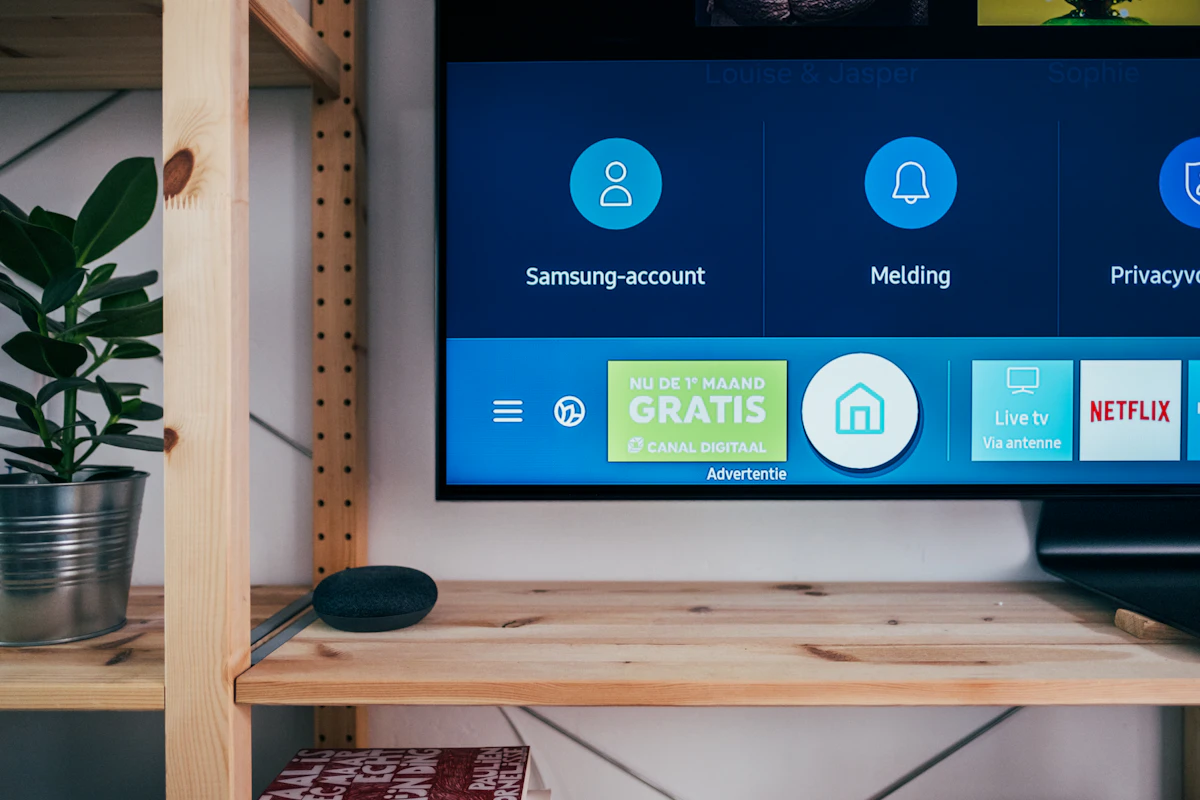
What’s actually happening when it says “failed”
Activation is really just a handshake. Your TV says “here’s my code,” Amazon says “got it, let me check your account,” and then the two of them agree that this TV is now linked to you. If any part of that conversation gets interrupted — your TV loses Wi-Fi for a second, you’re signed into the wrong Amazon account, or the app freezes mid-check — the whole thing fails and you get that message.
So it’s not that something is broken. It’s that one of the pieces didn’t connect when it needed to. That’s actually a relief, because it means we can fix it from the outside without calling anyone.
The four things worth checking
Before you dig into settings, do the simple thing first. Turn your TV off, then unplug it from the wall for about thirty seconds. While it’s off, close and reopen the browser on your phone or laptop that you’re using for the activation page.
When the TV comes back on, open Prime Video, wait for a brand-new code, and try entering it right away.
I know this sounds like the old “have you tried turning it off and on again” advice, and I hate that it works as often as it does — but it really does solve about a third of these cases, because it clears the temporary state on both ends.
This is the single most common cause of activation failure. Your TV needs a steady connection the entire time the handshake is happening. If the Wi-Fi drops for even a few seconds during the check, Amazon gives up and shows the failed message.
Here’s a quick way to test it: open another app on your TV, like YouTube or Netflix. If those load smoothly, your connection is probably fine. If they stutter or won’t open, restart your router and reconnect the TV to the network.
If your TV is on Wi-Fi and the signal is weak, and your TV supports a wired connection, this is a good moment to plug it in. A stable connection almost always beats a fast one for this.

This one trips up so many people, and it doesn’t feel obvious in the moment. If you have more than one Amazon account — maybe an old one you used years ago, or a separate one for shopping — your browser will quietly sign you into whichever one it remembers.
When you land on amazon.com/mytv, look at the name in the top corner before you type anything. Is that the account with your Prime subscription on it? If not, sign out and sign in with the right one. Then get a fresh code from your TV.
If you’re signed into the same Amazon account on your TV that you’re using on your phone, this step is done. If they’re different, that alone can cause the failure.
If the first three didn’t help, the app itself is probably stuck. It’s not broken — it’s just holding onto an old session that’s confusing Amazon’s check.
On most smart TVs, you’ll find this under Settings → Apps → Prime Video → Clear Cache. Some TVs label it Clear Data instead — either is fine, you’ll just need to sign back in, which you’re about to do anyway.
After clearing, reopen Prime Video. You should get a fresh code. Enter that one.
One small thing that helps
Use a private/incognito window in your browser for the activation page. It sounds strange, but it prevents your browser from getting stuck in a half-signed-in state, which is a hidden cause of the failure in a lot of cases.
If it’s still failing after all four
Take a breath — there are two more things worth trying.
Try a different browser or device. Sometimes the issue isn’t the code at all, it’s the browser you’re using to enter it. Chrome, Edge, Firefox, Safari — one of them will usually work when another doesn’t. Same with devices: if you’re using your phone, try a laptop, or the other way around.
Check whether the Prime Video app needs updating. An outdated version sometimes can’t handle the current activation protocol. Go into your TV’s app store and look for an update. If there’s one available, install it and try the process once more.
And if none of it works: Amazon support can help if the issue is on their end — an account flag or a device-specific block. You’ll need to contact them through the official Prime Video Help pages, not through any site that popped up in your search results.
If a popup asks you to call a “support number” — don’t
Amazon never asks you to call a phone number to activate a TV. That’s a known scam. Close the tab, don’t call, and don’t download anything they ask you to install.
Questions people ask me about this
Why does Amazon just say “activation failed” instead of the real reason?
Amazon doesn’t share the specific cause — it just tells you the handshake didn’t complete. That’s why it helps to work through the four common causes one by one instead of guessing.
Can activation fail because my TV is too old?
Yes, sometimes. If your TV model has dropped off Amazon’s supported device list, activation can fail no matter what you try. Worth checking Amazon’s supported devices page if your TV is more than five or six years old.
What if it fails on every device I try?
If the same error appears on multiple devices, the problem is likely on your Amazon account or your network — not the TV. Check your account status and make sure your home network isn’t blocking Amazon’s servers (some VPNs do).
Do I need Prime to activate Amazon MyTV?
You need an Amazon account to sign in and activate the device. Prime is what lets you watch most content, but the activation itself can happen on a free Amazon account.
Would deregistering and re-registering fix this?
Often, yes. If your TV is stuck in a half-registered state, removing it from your Amazon account and starting fresh can clear the problem. It’s worth trying after the four steps above.
The short version
“Activation Failed” means the handshake between your TV, your browser, and Amazon’s servers didn’t complete. The usual suspects are: an unstable TV internet connection, a wrong Amazon account, a stuck app, or a browser that needs a fresh session.
Restart everything first, then check the connection, then the account, then clear the app data. One of those will fix it in most cases. If nothing works and your TV is older than five or six years, it may simply be off Amazon’s supported list.